Testing new Gear – Triflector and Lastolite EZYBOX (20″)
Got a whole bunch of new grip and lighting gear over the last few days and found a bit of time to do some basic testing in between paperwork to save my sanity before I go stir crazy. Managed to entice Prabha to stand in as model for the tests with promises of tea and cake as payment (she’s easily pleased 🙂 ) Here was the setup:
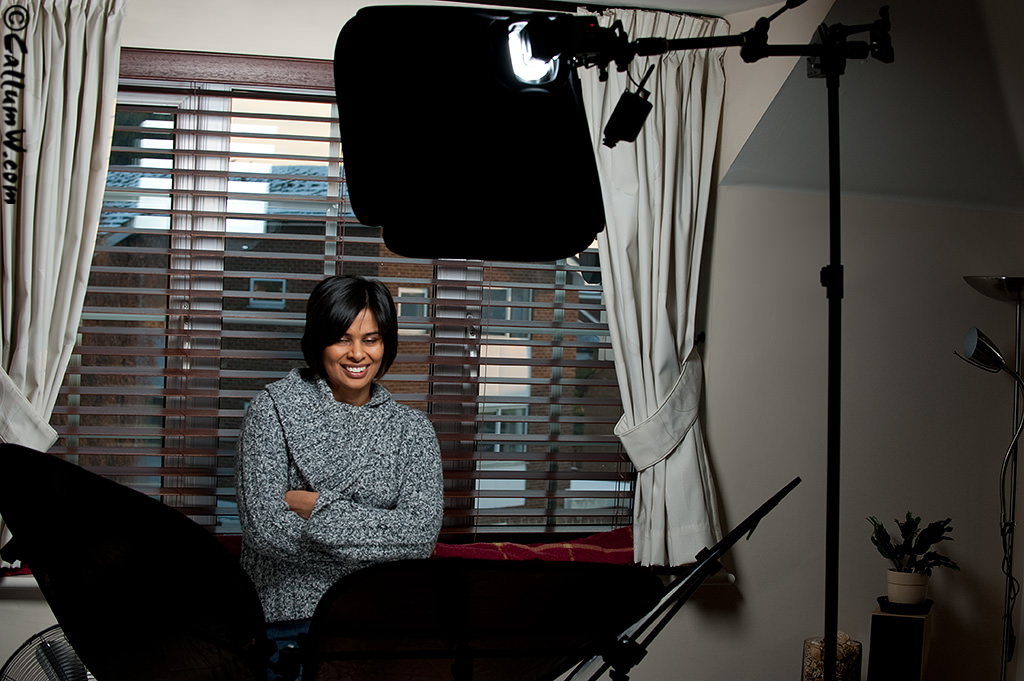
My impression of the ezybox is that it’s miles better than straight flash (obviously), but I prefer the feel and softer fall-off you get with shoot-through umbrellas. Overall though I was quite pleased with the results and I’m sure I will find a use for it when I want a slightly more sculpted shadow on the subject.
1 big downside. My SB-900 doesn’t fit into the ezybox coldshoe(!), so I had to use an SB-800. This is surprising considering that ithe ezybox is a newish piece of kit and the SB-900 has been available for quite a while.
<Correction: The SB-900 does fit, I just had to fit it on the other side of the coldshoe as it’s tapered to fit different sizes>
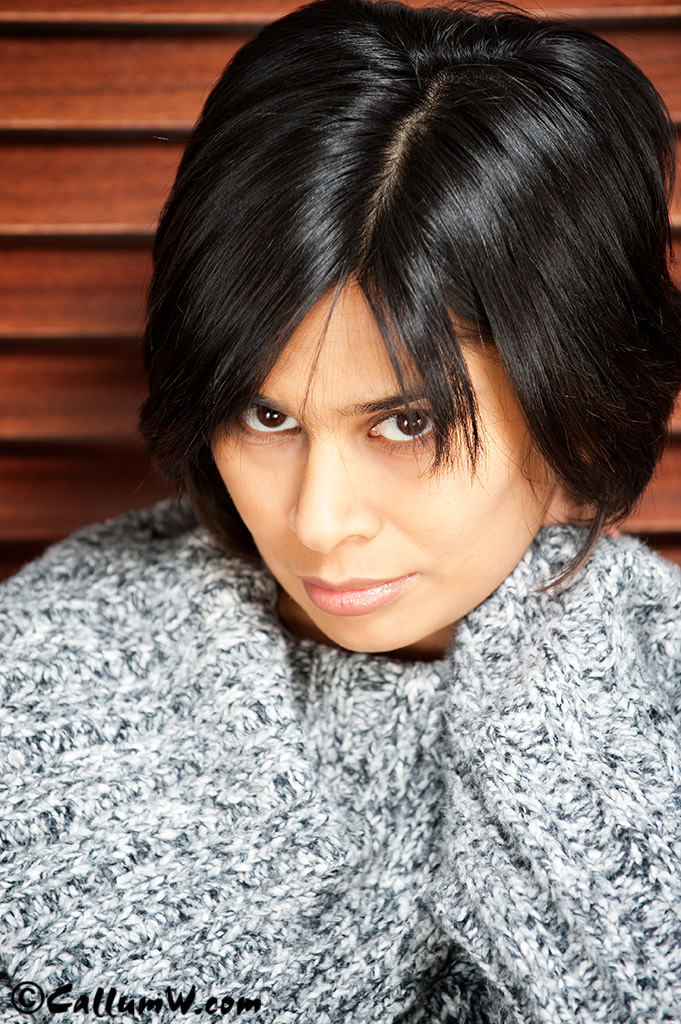
The Triflector is basically 3 small-med sized triangular reflectors mounted on a 3 legged bracket via rubber grips that let you position them in almost any direction. This gives an interesting catchlight in the eyes and give a more complete wrap of light around the subject.
Useful if you use just one light as I did here, and a viable alternative to clamshell lighting, although with the amount of coverage it throws back in the face it slightly washes out detail. I can see it being useful for muting the features of subjects with a lot of character in their face (think Gordon Ramsay), but that could defeat the purpose.
Overall I lean towards clamshell as a soft/beauty method due to it’s increase in control as well as giving slightly more contrast in the face. I can see the triflector will work well if I’m doing something corporate, so it will definitely have a home with me
Here are a few of the samples with Prabha so you can see the catchlights/shadow detail:


How to build a PC for work purposes #2
So, as in #1, the plan is to get a dedicated processing/editing machine.
What you get it entirely up to you, what your budget and OS preference is.
If you have technical person who looks after your machine(s) then it’s worth asking them how much it costs for a home-built machine Vs a pre-built one.Any IT person worth a salt will be able to put together a high-spec machine for a lot less than a shop bought one (including labour time)
For example, my current editing machine cost me £1000 to put together.It’s based on the latest Pentium processor (i7) which has 8 virtual CPU’s. It also has 12gb super fast RAM (1866), a 1Gb ATI graphics card (single) and SATA Hard drives (faster read/write to the memory). I run Windows XP64 on it, but that’s through personal preference and because Adobe’s 64 bit version of Photoshop isn’t available for Mac‘s.
To buy a PC of the same spec would have cost me easily £2000+ (and even more for a MAC PC)
Plus, because I installed the operating system myself, I left out all the programs that are unnecessary which makes the system faster, more robust and virtually impossible to be ‘hacked’.It’s important to use a 64bit Operating System if you have more than 3Gb of memory (including graphics cards) as 32 bit operating systems can only see 3Gb of memory. It also means that applications that are 64bit ‘ready’ can access all the memory available.
For example, my XP64 only takes 600Mb of the system memory, so I allow Photoshop 10Gb of the remaining memory to use as scratch space (working space for processing)
Which is plenty 🙂
With a 32 bit operating system (or program) it won’t see more than 3GbI trialled the 64 bit version of Windows 7 a few weeks ago and it was pretty quick and a huge improvement over Vista. Everything worked well including communication to my cameras (kinda important) and the connection to my Epson 9880. My performance score was 5.6 – the weakest link being my hard drive speed, so I put in an SSD (solid state disk) which brought my score up to 7.3 (7.8 being the max)
But in the end I decided to stick with XP over Windows 7 mainly because W7 requires a few more button clicks to perform regular tasks which is a step backwards in my eyes. Looks pretty and for a normal PC use it’d be fine, but for my work/editing machine I chose efficiency and function over looks.In the end the machine has to fit your needs for the work you do. the Operating system and specification of it are normally defined by use and budget, but it’s best not to skimp as if you get a machine that saves you 30 minutes a day waiting for it to process by doing it faster, then youve saved 2-3 hours a week and what’s that worth?
Snow more ….. The cold snap continues
It’s freeeeeezing
Especially if like me (a numptie) you go out at 1a.m. to take pictures of the snowscapes with no pedestrians or traffic.Sent the pics to the local paper and they’re going to be in this weeks print (as well as online)


Also had a play with a new Tilt/Shift lens which can make the real world look like a model village:

How to build a PC for work purposes #1
One of the key components to being a digital image maker is a PC or Server.
This is often something that is overlooked when we’re bombarded with newer, bigger resolution and faster FPS cameras every few months.
Although it’s great having top-end pro-cameras, you also need the [digital] darkroom to process the images efficiently tooWe can create files 11-60MP, 11FPS, 25-100Mb in size, yet it takes ages just to do the simplest processing, then it’s time to face the fact….. it is the weakest link…. reboot
So what can you do about it?
As with most things, the answer is fairly simple.
Below is the first step that should make an immediate change to your digital life.Sounds like a cop-out right? Well not quite. The secret to it is to also keep the one you already have 😉
So why buy another computer?
In an ideal world we would have a computer that’s as fast as lightning, never slows down over time and we’d never be distracted when using itThe new machine should be a high spec and built just for editing/processing – don’t put other programs on it if you can.
You keep your current machine/laptop as your ‘working’ device (accounting, email, paperwork,whatever…) and keep it as a backup for the main editing machine.I know it sounds like, “build a high power machine then leave it off most of the day”.
If that’s the case then great. It and you have become more efficient and so it means that you’re off working somewhere else.Another bonus is that it stops the new PC from being used unnecessarily which will over time wearing out the hard-drives and slow it down (yes, this happens)
2 key things will happen when you’re in front of the new machine which will speed you up1) You don’t have emails or IM messages or any distractions taking valuable resourses and popping up on the screen and interrupting your immersion in what you’re doing.
What you may find that what used to take you 2 hours now takes you just 1.
What could you do with an extra couple of hours in the day? 🙂2) No matter where you keep and use the new machine, psychologically you will know that this is your workplace.
It’s a lean mean editing machine.