Building a Car Rig
Been testing some new gear including a new lighting boom.
I had a mini brainwave (surfs up) and I wanted to test it on my car to see how it performed as part of my automotive rig.The reults are ok, but the boom was a bit too unstable and not quite long enough.
But it worked well as a compromise though and doesn’t take up too much room. All in all a useful test 🙂Here’s a couple of regular shots+ some with the boom in motion:


How to build a PC for work purposes #4
So, following #3, all we have to do now is use simple methods to improve the performance of your PC/MAC.
The Pagefile
If you have 2 or more disks then you can move your windows pagefile onto the second disk. The pagefile is used by windows when the memory is used and so it caches some of it’s data using the pagefile. Moving it away from the disk that holds your Operating System will improve performance as it will utilise both disks rather than trying to read/write from a single disk while working.
The only exception to this is when your OS disk is much faster than your second disk (see SSD below) in which case it’s quicker leaving it as-isDisk Performance
Disks vary in performance, but are getting faster all the time
The fastest disks you can get today are SSD (Solid State Disk) and are basically the same as a keyring memory stick, but with a bigger capacity and set in a laptop HD case. Unfortunately they’re still an emerging technology and so they’re not cheap (£1 per 1Gb at the time of writing).But the benefits are:
No moving parts – virtually indestructible (take note laptop users 😉 )
Not affected by magnets – it’s all silicon and solder
SpeedTo elaborate the speed difference, regular SATA hard drives (HDD) have a seek time of approx 0.18ms (milliseconds). Pretty fast for sure, but becasue SSD have no moving parts, their seek time is about 0.01ms. Doesn’t sound like much, but when your system tries to access 2,000 files during a boot-up it shows.
Added to that, regular SATA HDD have a read/write transfer rate of about 70-80Mb/s maximum. SSD transfer data is about 220mb/sFaaaast
To put it in perspective, I installed a Samsung PB22-J 128Gb disk on my system and used Ghost to copy from my old 40Gb C partition on my old 320Gb HDD to this new disk leaving 78Gb spare (my old disk has been added to my external backup pool).
My old disk would boot my system from start to screen up in just over 60 seconds. Now it gets to screen up in 22 seconds.
I set the spare 75Gb as an S drive and only use it for pagefile and scratch data for photoshop and other applicationsHonestly, 128Gb is excessive for what I do, 64Gb would have been enough (40Gb+24Gb scratch), but it’s good to have a little wiggle room just in case.
Scratch Space/Disk
Lots of programs and operating systems use temporary areas to perform tasks in the background or write temporary files. By allocating the scratch space to use either a fast disk (SSD) or a second disk then this will also increase performance as you won’t be ‘stealing’ disk time from the operating system/program disk.Well, that’s about it. I’ve kept this series fairly simple so that most people can follow the logic and theory behind the principles I’ve written.
Feel free to comment or ask questions belowHow to build a PC for work purposes #3
So, following #2, the plan is to get a dedicated processing/editing machine and build it to the right spec and operating system for your work.
Now comes a crucial part, one which could be a lifesaver (figuratively speaking).
This post is the genesis for these series of posts and I hope if read only one of them, then this is it.A friend of mine once said, “There are 2 types of people. People who back up and people who’ve lost everything”
How to stay safe starts with how you set up your PCA bugbear of mine is that you buy a PC/Laptop and the manufacturer has a pre-installed copy of Windows/Linux/Mac on there that uses the entire disk.
Good right?
Wrong. It’s a bad way to work and I’ll give you an example of how it should be set up and why.If you go out and buy a massive harddrive (500Gb+) and install your system and off you go then you’re in for a potential fall.
If you only have 1 hard drive (as in a laptop) then you need to partition it into at least 2 sections.C drive – Operating System (OS) and program partition
D drive – Important/Work DataDepending on the OS you use determines the size of the C partition you need. For example:
Windows 2000 – 10Gb max,
XP – 20Gb max,
Vista – 40Gb max,
Windows 7 – 40Gb maxThe above will be more than enough to hold your OS and editing programs and that’s all it should have.
If you have 2 discs in your machine, then Keep the C partition the same sizes as above and use the remaining space as scratch space for programs or a temporary area for unimportant things that don’t matter if they’re lost.
Use the entire 2nd disk for your important data only.Now you have your system installed on the C drive, install all patches and updates as required and install programs so it’s ready for use.
But before you start you should use a tool to ‘snapshot’ your system. Norton have a program called Ghost which works extremely well at this and only costs approx £40. I only use the ‘recovery disk’ which provides the snapshot of the C partition and don’t bother with the rest of the Ghost application.So why do this?
Imagine you get a hard drive failure or a virus or some corruption that trashes your system.
What are you going to do?
If the system is lost or corrupt then you need to re-install the whole thing which can take a day+ depending how many applications you have and then to reset it to the way you like as well as recovering files for applications etc.
With Ghost, you can have your system back up and running within 15 minutes.The one proviso is that you do a Ghost of the C partition regularly (I do mine on the 1st of the month) and you only need keep the last 3 months available.
Now you know why it’s pointless having your system as 1 big drive as you’d end up having to ghost everything every time, not just the core of your system.The D data partition should have it’s own backup schedule which will be more frequent and should be replicated at least weekly to an external source. I replicate my data every time I add images to my library and for ‘critical’ work or finalised images I also store it externally (webspace, DVD storage etc.) to ensure recoverability.
I’ve had to do recover my system a few times and files a couple of times and this simple practise has saved me a huuuuge amounts of time and stress by just having a snapshot of the system to hand and recent copies of my important data.
Ironically I attended a workshop recently and the photographer was waxing lyrical about how film was for forever and digital images can be lost with a hard drive crash.
I didn’t interrupt him but inside all I could think was that if he had a fire in his studio then he’d lose all his transparencies forever.
Now you’re armed with the information above, your know that your system is much more safe and your critical files are recoverable.
With film there’s only 1 transparency, but digital can easily be replicated (thankfully) and this should be part of our workflow.Nikon D3S – Hands on Review
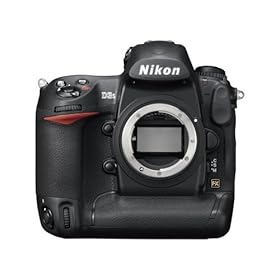
I’ve been reading some great reviews about the new Nikon D3S released October 2009 and I’m in the market for a new camera, so I went to my local Jessops have a looksee.
The last camera I had a look at was Nikon’s 25mp D3X which I was unimpressed with due to the amount of noise in the resulting files. No-one mentioned that when the D3X was reviewed (unless I was testing a ‘Friday’ Camera(?)), so I approached the D3S with some trepidation.
I performed the test in exactly the same why as I did with the D3X and the D700. I set up the D3S to the same settings I have on my D700 although I may have left the D3S in matrix metering rather than center weighted (it was capturing images about 2/3 stop brighter than my D700).
Both camera set to RAW (is there any other format?) and lossless compression. I tested the cameras using my 14-24 @ 14mm ,24-70mm @ 24mm and 70-200mm @ 70mm
The main reason behind this was to see how the camera handled potential vignetting at each lens’ widest focal range.
I set the camera to aperture priority @ f/4 and ran them through the ISO range from Lo1 (ISO100) to HI3 (102,400)I ran off the initial shots with the D700 then switched to the D3S
My first impression when I put it to my eye was how quiet it was. I’m used to the loud clatter of the D700/D3 shutter, but this was much more muted – similar to sound of the Canon 5dMkII.
1st image off so I checked the back of the camera to make sure I was exposing correctly and the second thing struck me …. 100% viewfinderBefore I got the D700 I convinced myself that 95% was ok and I just have to compensate to frame accordingly. But it’s been the one thing that’s driven me semi-nuts about the D700 . Lovely camera and a real performer, but every shot needs to be re-adjusted. Becomes a nagging thorn over time.
But now with the D3S we get Dust removal, 35mm sensor and 100% viewfinder coverage – Glorious
So I carried on with the test and left the shop with a wave and the shop’s number in my pocket. Back home to load up the files and after a quick upgrade to Lightroom 2.6, in they come.
The results are …… astonishing.
With High ISO NR off and Long Exposure NR off, the D3S created files at ISO6400 that are equal if not slightly better than the D700 at ISO1600. I expected it to be good, but it still caught me a little by surprise.At 200%, you can see the images Have a slightly ‘botox’ plasticky feel to them which doesn’t seem to hold as much contrast or sharpness as the D700, but the overall result when viewed normally is nothing short of amazing.
Below is a sample @ 200% of the D3S at ISO 6400 and the D700 @ 1600


Here are the full sized images:

Do I want one, hell yes, but at £4200 RRP for the camera it’s too steep. I shopped around and found a best price, so called the guy back in Jessops. He was unable to match the proce and so unfortunately I didn’t pick it up from them.
In fact – as much as I like it, I’m not getting one(!)The reason is simple, as with the D3, the D700 followed about 6 months later as being basically the same camera, but in a smaller body and 2/3 the price.
This is still silly expensive, but for me more than just the cost. One of the reasons I like the D700 over the D3 is because I put my grip on the D700 and I have the full size camera, but if I want to travel lighter or a bit more incognito then I remove the grip and I become just another ‘tourist’
Unofficially …. the D700S is out in March – I can wait ’till then 
Contrary to the roumour mills – it will be the same 12.1Mp sensor and 720p HD video, not 16 or 18Mp and 1080p HD video (why would anyone bother with the D3S if it was a better spec?)
So until March ……In case you want one now, here’s a link to the D3S in Amazon: