How To
How to do High Speed Sync with Studio Strobes
For those that don’t know what maximum flash sync speed is, put a flash on your camera, in Speed or Manual mode set it to 1/400s and take a shot. You’ll see that half the frame (usually the bottom) is darker than the top.
This is where the shutter is passing the sensor too fast for the flash and it closes during the flash fire.
Up until recently, the only cameras that were capable of high-speed sync were Medium Format digital cameras (e.g. Hasselblad) that cost £10+K. Medium Format cameras have a different shutter system (usually in the lens) and so the sensor is exposed to the image in a different way.
In the older film days, 35mm cameras had a maximum sync speed of about 1/60s …. which was a bit naff.
It’s only until fairly recently the maximum you could achieve with increased to 1/250s with Nikon and 1/200s with Canon.Although this was much improved over the old systems, it was still limiting to what you could do in broad daylight.
Then Nikon brought out what they call “Auto FP High-Speed Sync” and Canon call “High Speed Sync”.
This allows the camera to fire a speedlight multiple times as the shutter curtain passes the sensor which ‘paints’ the images onto the sensor at much faster shutter speeds.
It basically makes the flash last a bit longer so that it gets all the image lit right to the bottomThe cost for this is a bit of power.
Where your flash may be outputting F22 @1m at full power, if you increase the shutter to, say, 1/2000, you’re Aperture will need to drop to a lower value (F8?) to maintain the same exposure.
This in itself is amazing and the fact that modern strobes like the SB800 and SB900 (and Canon EX580?) can cope with this is phenomenal and opens up a lot more possibilities with your photography. It kills the batteries, but that’s why we keep spares handy

However, there are 2 drawbacks to this.
1) The camera has to be able to communicate to the flash to do this. Either in the hotshoe, using a remote hotshoe cable, or with some cameras, with the built in flash can talk to the speedlights
2) As mentioned above, there’s a power loss when increasing the sync speed beyond the native 1/250 sync as the flash has to increase it’s durationSo to increase the power you need more powerful lights than your speedlight, but you can’t make Studio Strobes sync faster than 1/250s ….. or can you ?
The answer is Yes.
Better than that, there’s 3 ways of doing it
The expensive way to do it is to use a PocketWizard MiniTT1 and FlexTT5 triggers to do this. But at approximately £225 each, its not cheap.
It will let you sync up to approx 1/500s (so I’m told) which is better, but not quite in the 1/5000s area.In a light controlled area (e.g. a studio) use the flash to set the shutterspeed, not the camera.
The flash duration of a studio strobe varies on the make/model, but in all cases the duration is shorter(faster) at the lower power output than at full power. e.g the flash duration of an Elinchrom Ranger head can reach up to 1/6000sThis is the duration of the light emitted from the flash and in a light-tight room will be the only light source, so anything photographed will be at the flash’s duration speed rather then the one set in-camera.
To set up a high-speed shot, black out a room and set your camera to the correct ISO and f/stop for the power set on the srobes.
Set a long camera exposure (e.g. 2-20 seconds) and take a test shot with no flash.
If there’s any hint of an image then there’s ambient light from somewhere. Find it – block it.
To do the live shot you must manually trigger the strobes during the exposure …. and there you have it, high-speed sync.The on-location way to do it is to use your existing speedlight (SB800 or SB900) to blip the light and set your studio strobe to be optically slaved and it will fire with the speedlight, but giving much more power than the speedlight could dream of.
The downside of this is that the flash needs to reach the Studio head which should be fine up to a point, but if you have remote lights beyond range or around corners, then the PocketWizards will be required
Below is a pictorial example of how to achieve High Speed Sync with just 1 speedlight and studio flashes.
NOTE: The studio lights are set to their lowest power setting throughout and my Nikon D700 is set to AutoFP on1st shot – ambient light
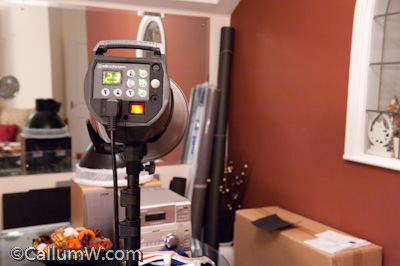
Ambient. 1/13 @ f/7.1 @ ISO6400
I hook up an Elinchrom Skyport trigger as the BXRi has a built in receiver.
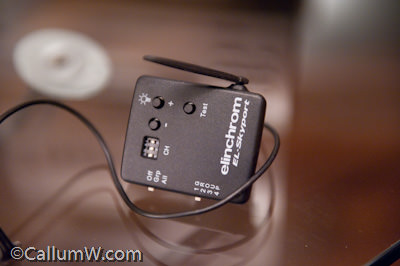
Ambient. 1/40 @ f/3.2 @ ISO6400
Pow!!! These things kick out some light…
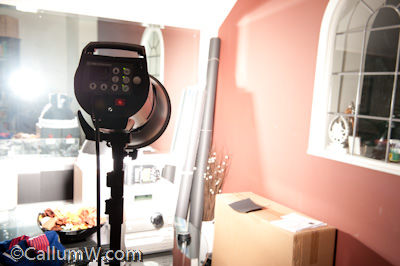
Wireless Skyport. 1/200 @ f/8 @ ISO400
Switch off the Skyport and set the camera to a ‘flash’ setting and take a shot to show that no ambient is showing

Ambient. 1/250 @ f/11 @ ISO400
Switch the Skyport back on and … Half decent exposure. Notice the bottom edge of the frame is a bit dark. Looks like the Skyport/Elinchrom combination is not quite 1/250s which is a surprise. 1/200s will be fine though
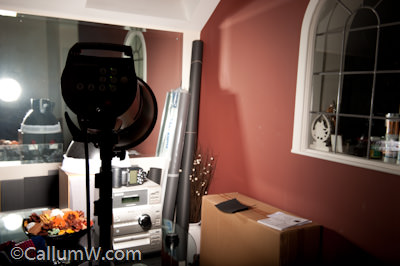
Wireless Skyport. 1/250 @ f/11 @ ISO200
Increase the shutter speed to 1/400 and there’s the typical sign that we’ve exceeded the sync speed
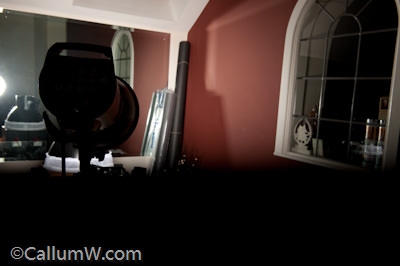
Wireless Skyport. 1/400 @ f/11 @ ISO200
So lets try a PC Sync cable to see if that’s better
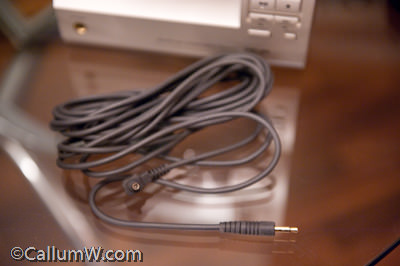
Ambient. 1/40 @ f/2.8 @ ISO6400
Looks fine at 1/200s. Let’s up it to 1/250s to see if we get the dark area at the base of the frame again
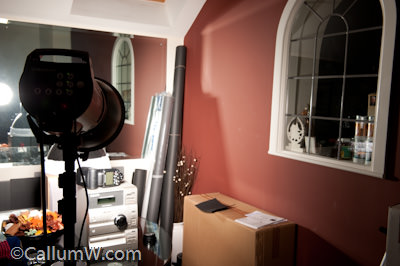
Sync Cable. 1/200 @ f/11 @ ISO200
….. Nope – it looks fine. The wire connection is fine at 1/250s. The wireless must be a bit sluggish
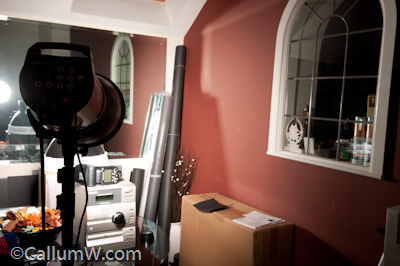
Sync Cable. 1/250 @ f/11 @ ISO200
Bump it to 1/400s and there’s the clipping of the frame again. Interesting that it’s much lower than using the Wireless trigger due to the immediacy of the hard wire connection
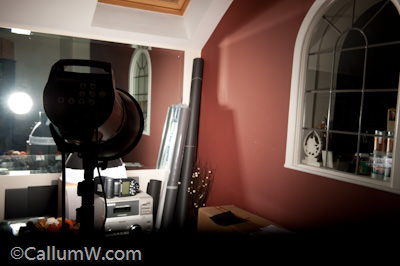
Sync Cable. 1/400 @ f/11 @ ISO200
Time to try the speedlight. Ignore the settings in this picture
It was actually set to [TTL][BL][FP] for the next shots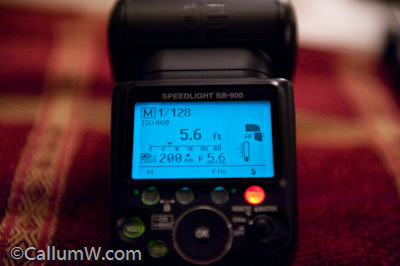
Ambient. 1/160 @ f/2.8 @ ISO6400
Ambient shot at much lower settings. The speedlights pack a much lower punch so need to adjust down accordingly
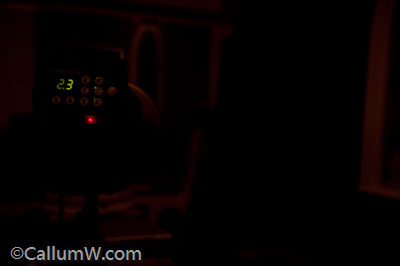
Ambient. 1/200 @ f/2.8 @ ISO400
Flash switched on and ….. not too bad
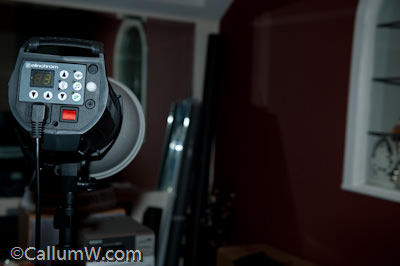
SB900 TTL FP. 1/200 @ f/4 @ ISO200
1/250s is showing clean edge to edge illumination
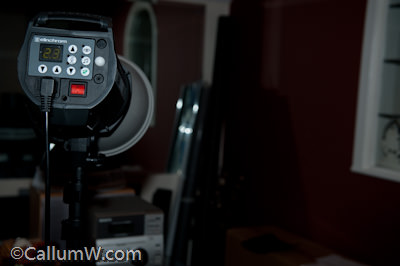
SB900 TTL FP. 1/250 @ f/4 @ ISO200
Ramped it up to 1/800 and it’s still lit fine, but notice the slight warmer colour shift
SB900 TTL FP. 1/800 @ f/4 @ ISO200
Ramp it up to 1/4000s and it’s still popping away quite happily
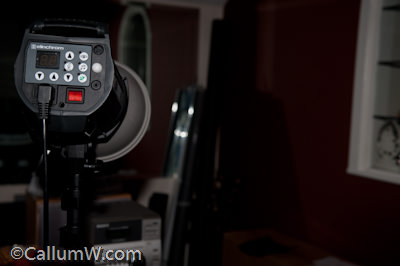
SB900 TTL FP. 1/4000 @ f/4 @ ISO200
I now set the SB900 to manual and it’s lowest setting (1/128) as per the picture 6 up from here. It actually shows [M] [FP] to indicate that it’s in high-speed-sync mode.
The Flash hardly does anything to the image, but will easily trigger the BXRi optical slave….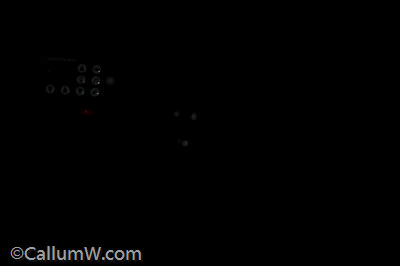
SB900 M FP 1/128 power. D700 1/4000 @ f/4 @ ISO200
Set the optical slave on and ….. hey presto. Clean image at 1/250s
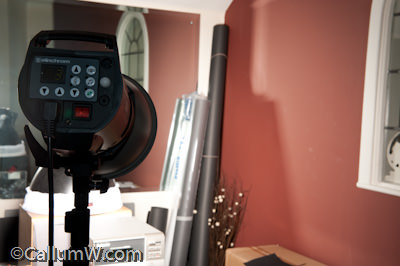
SB900 M FP 1/128 power. D700 1/250 @ f/11 @ ISO200
Bump it up to 1/800 and, although it’s darker in the top of the frame, the bottom section is lit.
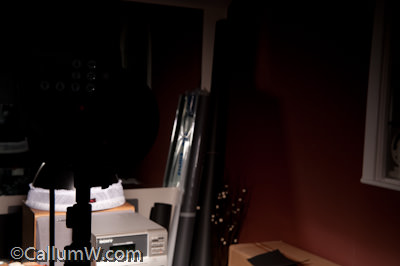
SB900 M FP 1/128 power. D700 1/800 @ f/11 @ ISO200
Increase to 1/2000s and it’s still lighting it. Bare n mind this is the BXRi at minimum powerand the camera settings are 2 stops darker than when using the AutoFP with the SB900
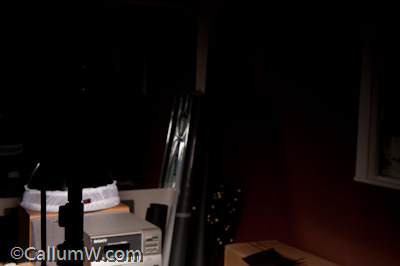
SB900 M FP 1/128 power. D700 1/2000 @ f/11 @ ISO200
Increase the F stop to F4 rather than power up the strobe head
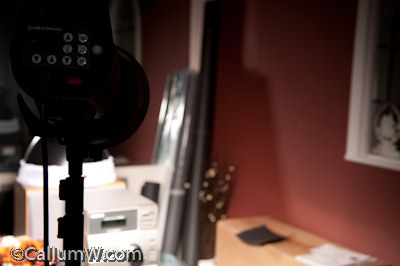
SB900 M FP 1/128 power. D700 1/2000 @ f/4 @ ISO200
Hardly any change when increasing it to 1/4000s
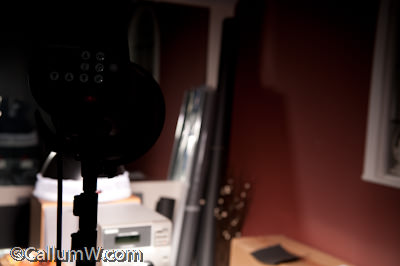
SB900 M FP 1/128 power. D700 1/4000 @ f/4 @ ISO200
And again virtually no change even though the camera is firing at 1/8000s
…. yes 1/8000s sync with a studio light 
SB900 M FP 1/128 power. D700 1/8000 @ f/4 @ ISO400
So there you have it. The easy way to perform maximum sync speeds on your camera and still be able to use studio lighting to light your subject.
Any comments, please add them below 🙂Building a Car Rig
Been testing some new gear including a new lighting boom.
I had a mini brainwave (surfs up) and I wanted to test it on my car to see how it performed as part of my automotive rig.The reults are ok, but the boom was a bit too unstable and not quite long enough.
But it worked well as a compromise though and doesn’t take up too much room. All in all a useful test 🙂Here’s a couple of regular shots+ some with the boom in motion:


How to build a PC for work purposes #4
So, following #3, all we have to do now is use simple methods to improve the performance of your PC/MAC.
The Pagefile
If you have 2 or more disks then you can move your windows pagefile onto the second disk. The pagefile is used by windows when the memory is used and so it caches some of it’s data using the pagefile. Moving it away from the disk that holds your Operating System will improve performance as it will utilise both disks rather than trying to read/write from a single disk while working.
The only exception to this is when your OS disk is much faster than your second disk (see SSD below) in which case it’s quicker leaving it as-isDisk Performance
Disks vary in performance, but are getting faster all the time
The fastest disks you can get today are SSD (Solid State Disk) and are basically the same as a keyring memory stick, but with a bigger capacity and set in a laptop HD case. Unfortunately they’re still an emerging technology and so they’re not cheap (£1 per 1Gb at the time of writing).But the benefits are:
No moving parts – virtually indestructible (take note laptop users 😉 )
Not affected by magnets – it’s all silicon and solder
SpeedTo elaborate the speed difference, regular SATA hard drives (HDD) have a seek time of approx 0.18ms (milliseconds). Pretty fast for sure, but becasue SSD have no moving parts, their seek time is about 0.01ms. Doesn’t sound like much, but when your system tries to access 2,000 files during a boot-up it shows.
Added to that, regular SATA HDD have a read/write transfer rate of about 70-80Mb/s maximum. SSD transfer data is about 220mb/sFaaaast
To put it in perspective, I installed a Samsung PB22-J 128Gb disk on my system and used Ghost to copy from my old 40Gb C partition on my old 320Gb HDD to this new disk leaving 78Gb spare (my old disk has been added to my external backup pool).
My old disk would boot my system from start to screen up in just over 60 seconds. Now it gets to screen up in 22 seconds.
I set the spare 75Gb as an S drive and only use it for pagefile and scratch data for photoshop and other applicationsHonestly, 128Gb is excessive for what I do, 64Gb would have been enough (40Gb+24Gb scratch), but it’s good to have a little wiggle room just in case.
Scratch Space/Disk
Lots of programs and operating systems use temporary areas to perform tasks in the background or write temporary files. By allocating the scratch space to use either a fast disk (SSD) or a second disk then this will also increase performance as you won’t be ‘stealing’ disk time from the operating system/program disk.Well, that’s about it. I’ve kept this series fairly simple so that most people can follow the logic and theory behind the principles I’ve written.
Feel free to comment or ask questions belowHow to build a PC for work purposes #3
So, following #2, the plan is to get a dedicated processing/editing machine and build it to the right spec and operating system for your work.
Now comes a crucial part, one which could be a lifesaver (figuratively speaking).
This post is the genesis for these series of posts and I hope if read only one of them, then this is it.A friend of mine once said, “There are 2 types of people. People who back up and people who’ve lost everything”
How to stay safe starts with how you set up your PCA bugbear of mine is that you buy a PC/Laptop and the manufacturer has a pre-installed copy of Windows/Linux/Mac on there that uses the entire disk.
Good right?
Wrong. It’s a bad way to work and I’ll give you an example of how it should be set up and why.If you go out and buy a massive harddrive (500Gb+) and install your system and off you go then you’re in for a potential fall.
If you only have 1 hard drive (as in a laptop) then you need to partition it into at least 2 sections.C drive – Operating System (OS) and program partition
D drive – Important/Work DataDepending on the OS you use determines the size of the C partition you need. For example:
Windows 2000 – 10Gb max,
XP – 20Gb max,
Vista – 40Gb max,
Windows 7 – 40Gb maxThe above will be more than enough to hold your OS and editing programs and that’s all it should have.
If you have 2 discs in your machine, then Keep the C partition the same sizes as above and use the remaining space as scratch space for programs or a temporary area for unimportant things that don’t matter if they’re lost.
Use the entire 2nd disk for your important data only.Now you have your system installed on the C drive, install all patches and updates as required and install programs so it’s ready for use.
But before you start you should use a tool to ‘snapshot’ your system. Norton have a program called Ghost which works extremely well at this and only costs approx £40. I only use the ‘recovery disk’ which provides the snapshot of the C partition and don’t bother with the rest of the Ghost application.So why do this?
Imagine you get a hard drive failure or a virus or some corruption that trashes your system.
What are you going to do?
If the system is lost or corrupt then you need to re-install the whole thing which can take a day+ depending how many applications you have and then to reset it to the way you like as well as recovering files for applications etc.
With Ghost, you can have your system back up and running within 15 minutes.The one proviso is that you do a Ghost of the C partition regularly (I do mine on the 1st of the month) and you only need keep the last 3 months available.
Now you know why it’s pointless having your system as 1 big drive as you’d end up having to ghost everything every time, not just the core of your system.The D data partition should have it’s own backup schedule which will be more frequent and should be replicated at least weekly to an external source. I replicate my data every time I add images to my library and for ‘critical’ work or finalised images I also store it externally (webspace, DVD storage etc.) to ensure recoverability.
I’ve had to do recover my system a few times and files a couple of times and this simple practise has saved me a huuuuge amounts of time and stress by just having a snapshot of the system to hand and recent copies of my important data.
Ironically I attended a workshop recently and the photographer was waxing lyrical about how film was for forever and digital images can be lost with a hard drive crash.
I didn’t interrupt him but inside all I could think was that if he had a fire in his studio then he’d lose all his transparencies forever.
Now you’re armed with the information above, your know that your system is much more safe and your critical files are recoverable.
With film there’s only 1 transparency, but digital can easily be replicated (thankfully) and this should be part of our workflow.


